Building Tirraflow Part 4: CI/CD Auto-Deploy with GitHub Actions
Every time I wanted to deploy a change to Tirraflow, I'd SSH into the VPS, pull the latest code, rebuild containers, and restart services. Three repos, same ritual every time: ssh deploy@my-server cd...
Every time I wanted to deploy a change to Tirraflow, I'd SSH into the VPS, pull the latest code, rebuild containers, and restart services. Three repos, same ritual every time:
ssh deploy@my-server
cd ~/app/frontend && git pull
cd ~/app/deploy && docker compose -f docker-compose.prod.yml build frontend
docker compose -f docker-compose.prod.yml up -d frontend
It worked. But it was tedious, error-prone, and easy to forget a step. So I automated it — GitHub Actions now SSHs into the VPS and does the exact same thing, triggered by a merge to main.
The Setup
Tirraflow is split across three GitHub repositories:
Repo | Contains | Deploy action |
|---|---|---|
frontend | React SPA (Vite + Tailwind) | Rebuild frontend container |
api | Go/Gin API | Rebuild API container |
deploy | docker-compose, Nginx configs, Keycloak themes | Restart affected services |
Each repo already had CI pipelines — lint, tests, builds. The goal was to add a deploy job at the end that only runs when code lands on main.
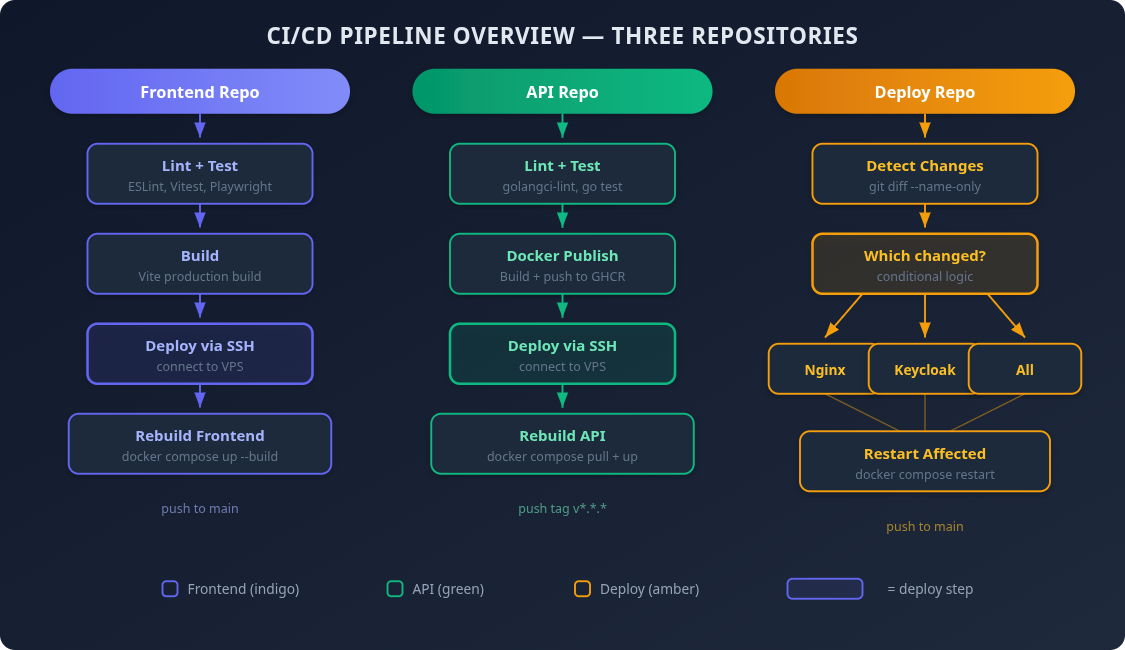
The Approach: SSH from GitHub Actions
I considered a few options:
Watchtower — auto-pulls new Docker images. Simple, but no control over timing or rollback.
Webhook listener on the VPS — a small HTTP server that triggers deploys. More moving parts to maintain.
SSH from GitHub Actions — runs the same commands I'd type manually. No extra infrastructure.
SSH won because it's the simplest thing that works. The VPS already accepts SSH. GitHub Actions already runs after tests pass. I just needed to connect the two.
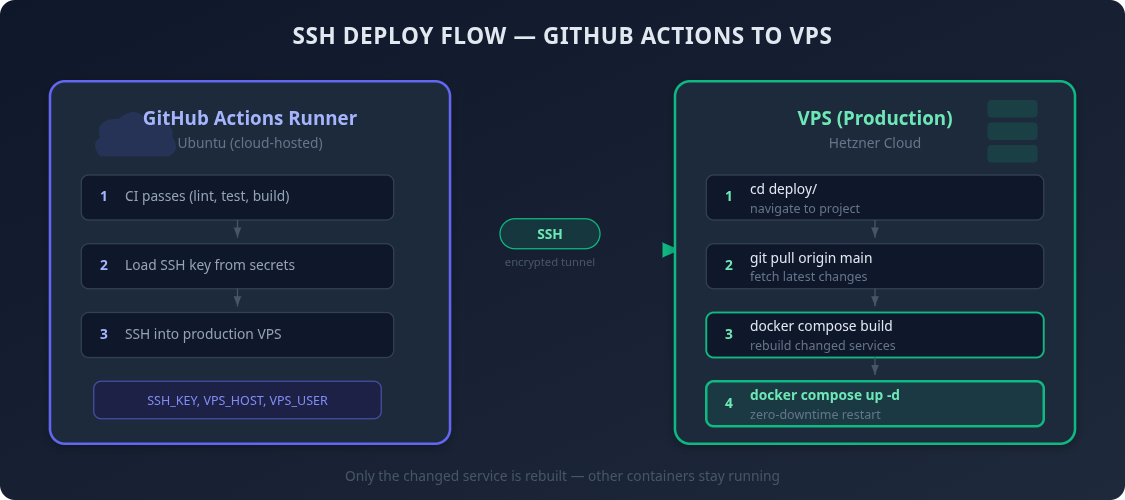
The tool for this is appleboy/ssh-action — a GitHub Action that SSHs into a remote server and runs a script. Battle-tested, widely used, minimal configuration.
Setting Up SSH Access
GitHub Actions needs to authenticate with the VPS. The flow:
Generate an SSH key pair on the VPS (as the deploy user):
ssh-keygen -t rsa -b 4096Authorize the public key so the server accepts connections:
cat ~/.ssh/id_rsa.pub >> ~/.ssh/authorized_keysAdd the private key to GitHub Secrets — this is what GitHub Actions uses to prove its identity.
Four secrets, configured in each repository (or at the org level to share them):
Secret | Value |
|---|---|
| Server IP address |
| Deploy username |
| Contents of the private key |
| SSH port (usually |
Tip: If you have multiple repos under the same GitHub org, set these as organization secrets. Configure once, available everywhere.
Frontend Pipeline
The frontend CI already runs lint, unit tests, E2E tests (Playwright), and a production build. The deploy job chains after all of that:
# .github/workflows/ci.yml
name: CI

on:
  push:
    branches: [main]
    paths-ignore:
      - '*.md'
      - 'docs/**'
      - 'LICENSE'
      - '.gitignore'
  pull_request:
    branches: [main]
    paths-ignore:
      - '*.md'
      - 'docs/**'
      - 'LICENSE'
      - '.gitignore'

jobs:
  ci:
    name: QA & Tests
    runs-on: ubuntu-latest
    steps:
      - uses: actions/checkout@v4
      - uses: actions/setup-node@v4
        with:
          node-version: 22
          cache: npm
      - run: npm ci
      - run: npm run lint
      - run: npm run test:run
      - run: npx playwright install chromium --with-deps
      - run: npm run test:e2e
      - run: npm run build

  deploy:
    name: Deploy to Production
    runs-on: ubuntu-latest
    needs: ci
    if: github.event_name == 'push' && github.ref == 'refs/heads/main'
    steps:
      - name: Deploy via SSH
        uses: appleboy/ssh-action@v1
        with:
          host: ${{ secrets.VPS_HOST }}
          username: ${{ secrets.VPS_USER }}
          key: ${{ secrets.VPS_SSH_KEY }}
          port: ${{ secrets.VPS_PORT }}
          script: |
            cd ~/app/frontend && git pull origin main
            cd ~/app/deploy && docker compose -f docker-compose.prod.yml build frontend
            docker compose -f docker-compose.prod.yml up -d frontend
Key details:
needs: ci— deploy only runs after all tests pass. A broken build never reaches production.if: github.event_name == 'push' && github.ref == 'refs/heads/main'— deploy only on merges to main, never on PRs. PR builds still run the full test suite, they just don't deploy.paths-ignore— if you only update the README, nothing runs at all. No point linting and deploying for a typo fix in documentation.
The deploy script does exactly what I used to do manually: pull the latest code, rebuild the Docker image (which runs npm run build inside a multi-stage Dockerfile), and restart the container.
API Pipeline
The API pipeline is similar but has an extra step — it builds and publishes a Docker image to GitHub Container Registry (ghcr.io) before deploying:
jobs:
  qa:
    name: QA & Tests
    # ... lint, vet, unit tests, integration tests, build

  docker:
    name: Docker Build & Publish
    needs: qa
    # ... build image, push to ghcr.io, sign with cosign

  deploy:
    name: Deploy to Production
    needs: docker
    runs-on: ubuntu-latest
    if: github.event_name == 'push' && github.ref == 'refs/heads/main'
    steps:
      - name: Deploy to VPS
        uses: appleboy/ssh-action@v1
        with:
          host: ${{ secrets.VPS_HOST }}
          username: ${{ secrets.VPS_USER }}
          key: ${{ secrets.VPS_SSH_KEY }}
          port: ${{ secrets.VPS_PORT }}
          script: |
            cd ~/app/api && git pull origin main
            cd ~/app/deploy && docker compose -f docker-compose.prod.yml build api
            docker compose -f docker-compose.prod.yml up -d api
The chain is: QA passes → Docker image published → Deploy to VPS. Three gates before anything touches production.
The API CI also runs on tags (v*.*.*) and a daily schedule for regression detection. The deploy job's if condition ensures it only triggers on main branch pushes — tagged releases and scheduled runs skip deployment.
Deploy Repo: Selective Restarts
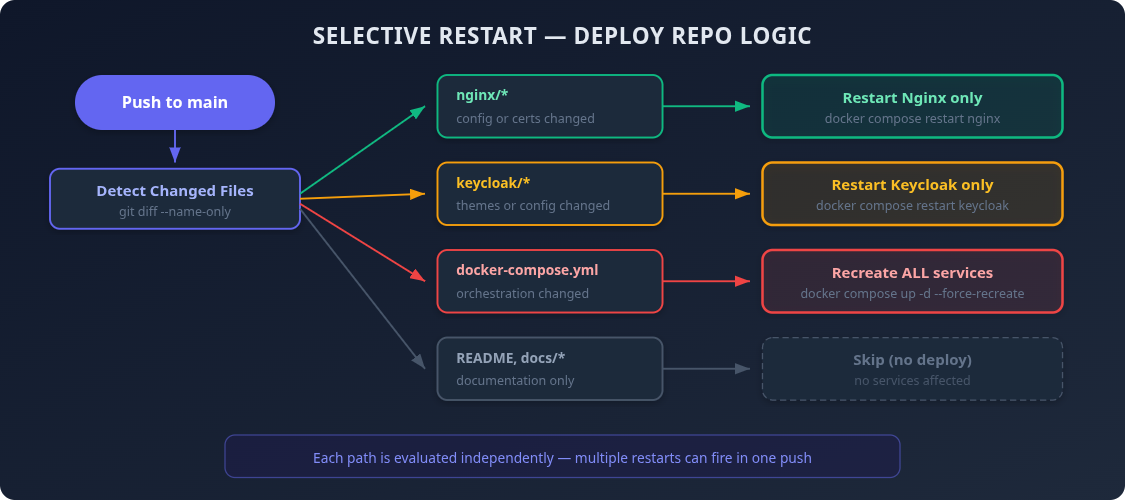
The deploy repo is different. It contains infrastructure config — Nginx rules, docker-compose, Keycloak themes. Not every change needs a restart, and restarting the wrong service for no reason is wasteful.
So instead of always restarting everything, the workflow detects which files changed and only restarts affected services:
# .github/workflows/deploy.yml
name: Deploy

on:
  push:
    branches: [main]

jobs:
  detect-changes:
    name: Detect Changes
    runs-on: ubuntu-latest
    outputs:
      nginx: ${{ steps.changes.outputs.nginx }}
      keycloak: ${{ steps.changes.outputs.keycloak }}
      compose: ${{ steps.changes.outputs.compose }}
    steps:
      - uses: actions/checkout@v4
        with:
          fetch-depth: 2

      - name: Detect changed paths
        id: changes
        run: |
          CHANGED=$(git diff --name-only HEAD~1 HEAD)
          echo "nginx=false" >> "$GITHUB_OUTPUT"
          echo "keycloak=false" >> "$GITHUB_OUTPUT"
          echo "compose=false" >> "$GITHUB_OUTPUT"

          if echo "$CHANGED" | grep -q '^nginx/'; then
            echo "nginx=true" >> "$GITHUB_OUTPUT"
          fi
          if echo "$CHANGED" | grep -q '^keycloak/'; then
            echo "keycloak=true" >> "$GITHUB_OUTPUT"
          fi
          if echo "$CHANGED" | grep -q '^docker-compose.prod.yml'; then
            echo "compose=true" >> "$GITHUB_OUTPUT"
          fi

          echo "Changed files:"
          echo "$CHANGED"

  deploy:
    name: Deploy to Production
    needs: detect-changes
    if: >-
      needs.detect-changes.outputs.nginx == 'true' ||
      needs.detect-changes.outputs.keycloak == 'true' ||
      needs.detect-changes.outputs.compose == 'true'
    runs-on: ubuntu-latest
    steps:
      - name: Deploy config changes
        uses: appleboy/ssh-action@v1
        env:
          NGINX_CHANGED: ${{ needs.detect-changes.outputs.nginx }}
          KEYCLOAK_CHANGED: ${{ needs.detect-changes.outputs.keycloak }}
          COMPOSE_CHANGED: ${{ needs.detect-changes.outputs.compose }}
        with:
          host: ${{ secrets.VPS_HOST }}
          username: ${{ secrets.VPS_USER }}
          key: ${{ secrets.VPS_SSH_KEY }}
          port: ${{ secrets.VPS_PORT }}
          envs: NGINX_CHANGED,KEYCLOAK_CHANGED,COMPOSE_CHANGED
          script: |
            cd ~/app/deploy && git pull origin main

            if [ "$COMPOSE_CHANGED" = "true" ]; then
              echo "docker-compose.prod.yml changed - recreating all services..."
              docker compose -f docker-compose.prod.yml up -d
            else
              if [ "$NGINX_CHANGED" = "true" ]; then
                echo "Restarting nginx..."
                docker compose -f docker-compose.prod.yml restart nginx
              fi
              if [ "$KEYCLOAK_CHANGED" = "true" ]; then
                echo "Restarting keycloak..."
                docker compose -f docker-compose.prod.yml restart keycloak
              fi
            fi
The logic:
Changed files | What happens |
|---|---|
| Restart only Nginx |
| Restart only Keycloak |
| Recreate all services |
| Nothing deploy is skipped entirely |
Multiple changes in one push work too. If you update both Nginx config and a Keycloak theme, both services restart. If you change the compose file, everything gets recreated regardless.
The fetch-depth: 2 in the checkout step is important — without it, GitHub Actions does a shallow clone with only the latest commit, and git diff HEAD~1 HEAD would fail.
Skipping Deploys for Docs-Only Changes
Both the frontend and API workflows use paths-ignore to skip the entire pipeline — CI included — when only documentation files change:
on:
  push:
    branches: [main]
    paths-ignore:
      - '*.md'
      - 'docs/**'
      - 'LICENSE'
      - '.gitignore'
This means updating a README doesn't trigger lint, tests, builds, or deployment. It saves CI minutes and avoids unnecessary container rebuilds.
The deploy repo handles this differently through the change detection job because its "docs" (articles, README) live alongside its config files. paths-ignore would be too coarse.
What the Flow Looks Like
Here's the full picture for a typical frontend change:
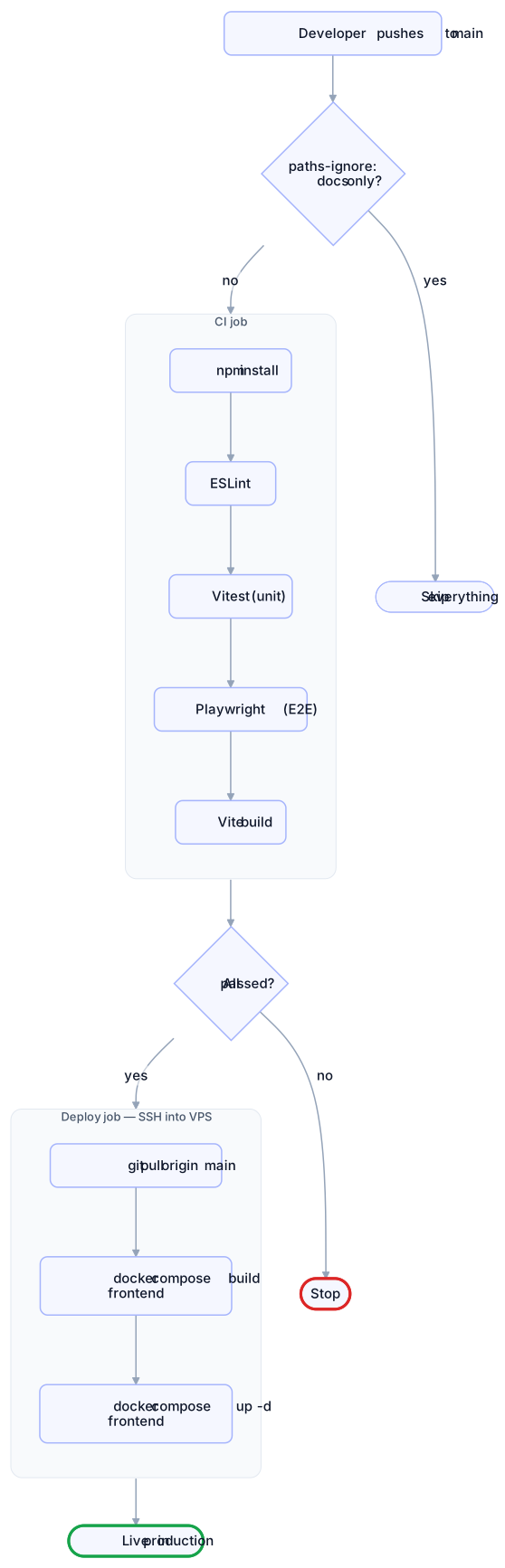
From push to production: about 3-4 minutes. Most of that is CI — the deploy itself takes under 30 seconds.
Gotchas
1. Secrets must exist in every repo (or at org level).
The first time I set this up, I configured secrets in one repo and forgot the other. The deploy job failed with error: missing server host not the most obvious error message for "your secret doesn't exist."
2. Directory names on the VPS matter.
My workflow scripts referenced ~/app/infra but the actual directory was ~/app/deploy. The SSH command succeeded (it connected fine) but the script failed with cd: No such file or directory. Double-check your paths match what's actually on the server.
3. The deploy user needs Docker permissions.
The deploy user must be in the docker group to run docker compose without sudo:
sudo usermod -aG docker <deploy-user>4. git pull can fail if there are local changes.
If someone ever edits a file directly on the VPS (a quick hotfix, a config tweak), git pull will fail with merge conflicts. The deploy script assumes the VPS repos are always clean. Discipline matters — all changes go through Git.
5. Firewall rules for GitHub Actions.
If your VPS firewall restricts SSH to specific IPs, you'll need to allow GitHub Actions runners. Their IP ranges are published at the GitHub meta API under the actions key, but they change frequently. An alternative is to use a VPN or bastion host.
The Result
Zero manual SSH for routine deployments
Three pipelines — one per repo, each deploying only what changed
Gated deploys — tests must pass before anything reaches production
Smart restarts — config changes only restart affected services
Docs-only changes are free — no CI, no deploy, no wasted time
The whole setup took about an hour. The time saved on the first week alone made it worth it.
Update: What the Pipeline Does Now
The workflows above are the first version: pull, build, restart. Six months of running them in production changed a few things, each after a real incident or near miss:
Deploy the tested commit, not
main. The job passesgithub.shato the VPS and runsgit checkout --force "$DEPLOY_SHA".git pulldeploys whatevermainpoints to by the time the SSH session starts, which may be a commit CI never saw.Wait for health, and roll back.
docker compose up -d --waitfails the job if the container never turns healthy. Before building, the script records the running image ID; on failure it re-tags that image and brings it back up.Fail loudly. Every script starts with
set -euo pipefail, and the deploy repo usesgit pull --ff-only. A config file edited by hand on the server now stops the pipeline instead of letting it ship stale config and report success.Validate nginx in a throwaway container.
nginx.confis bind-mounted as a single file, andgitreplaces files by rename, so the running container keeps reading the old inode.nginx -tinside it validates stale config and a reload silently changes nothing. The new config is tested in a freshdocker run, then nginx is recreated, not reloaded, and rolled back to the previous commit's config if it doesn't turn healthy.A manual trigger.
workflow_dispatchwith a target (nginx,compose,keycloak,scripts,all) replaces the empty commit that used to be the only way to re-run a deploy.Prune the build cache. Images were pruned after each deploy, the BuildKit cache was not, and it had quietly grown to 26 GB.
The lesson behind all of them: a green pipeline only proves the steps ran. Each of these makes the pipeline check the thing that actually matters — that the site is up and serving the code that was tested.
What's Next
Part 5: Hardening the VPS After a Cryptominer Got In — how it got in, and the six layers that keep it out.
The Series
Building Tirraflow is a 5-part series on how the platform you are reading was built and run; every part is linked below.
Part | Topic |
|---|---|
The stack, the architecture, and what I learned shipping it | |
Non-blocking auth for a SPA, and why Keycloak ended up same-origin | |
Testing the whole frontend with no backend at all | |
Part 4 (this post) | From push to production, and how the pipeline learned to roll back |
How it got in, and the six layers that keep it out |