Building AI Agents for DevOps Part 2: From Terminal to Slack
In Part 1, I built a DevOps agent platform where AI agents monitor Kafka, Kubernetes, and Docker. It worked great — in the terminal and the ADK web UI. But here's the thing: when you're paged at 2...
Updated for Orrery 0.6.0 (October 2026). One thread is still one session, and approvals still use buttons. Since then, only the person who asked can approve an action. Slow turns post one status message that is edited live as each specialist works. And with impersonation on, Kubernetes and Elasticsearch calls run as the Slack user. The live status message is covered in Part 16, impersonation in Part 17.
In Part 1, I built a DevOps agent platform where AI agents monitor Kafka, Kubernetes, and Docker. It worked great — in the terminal and the ADK web UI.
But here's the thing: when you're paged at 2 AM, you're not opening a web dashboard. You're in Slack, looking at alerts. So I brought the agent to where DevOps teams actually work.
This post covers how I built the Slack integration, the design decisions behind it, and how confirmation buttons replace the text-based "are you sure?" flow.
What It Looks Like
Here's a real conversation. I ask about Kafka, request a topic creation (which requires confirmation), and check running containers — all from a Slack thread:
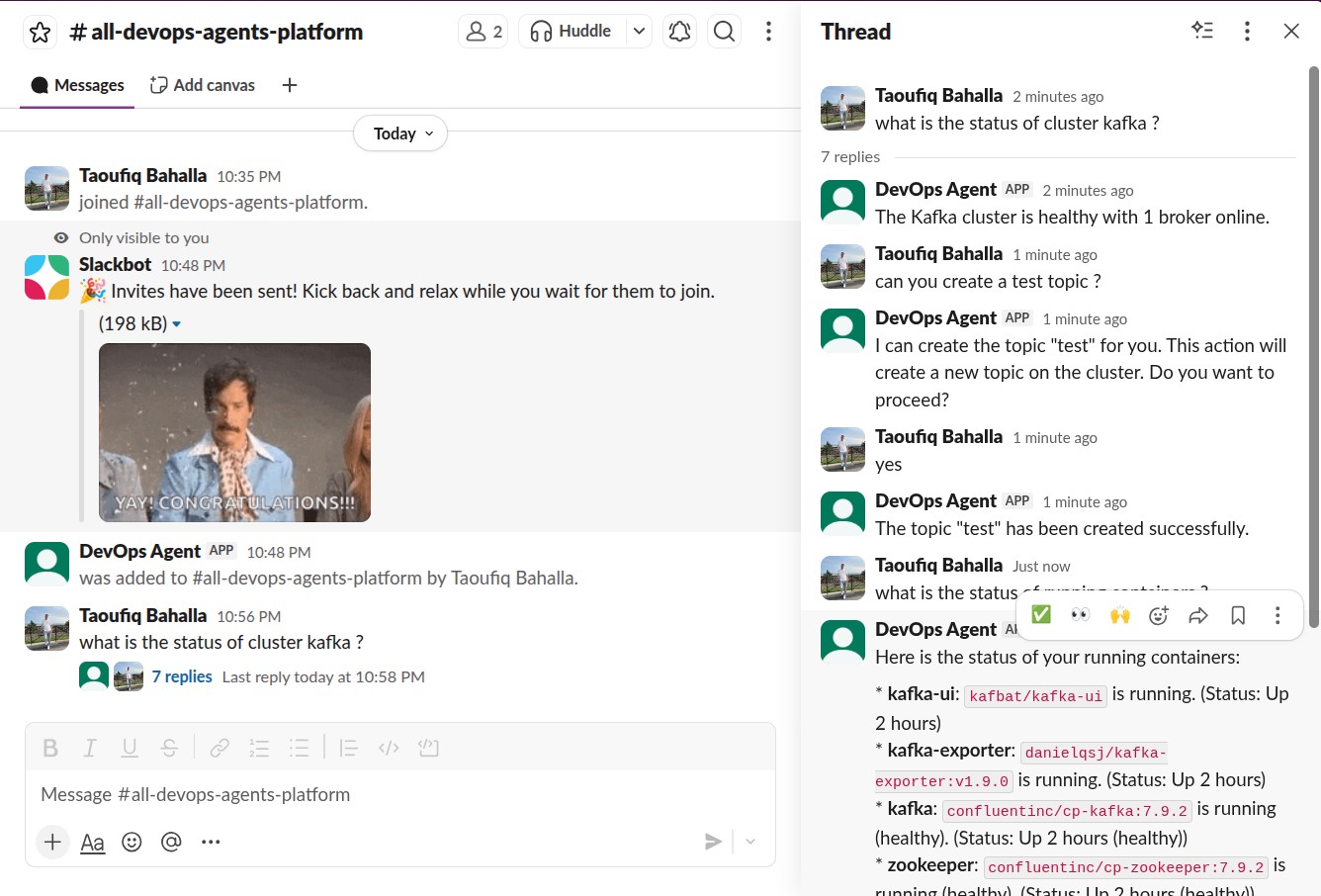
The agent uses the same tools, the same sub-agents, the same guardrails as in the terminal. The only difference is the interface.
The Key Idea: Same Agent, Different Transport
The Slack bot is not a separate agent. It imports the exact same root_agent from the devops-assistant and wraps it with Slack event handling:
from devops_assistant.agent import root_agent  # same agent as CLI/web

runner = Runner(agent=root_agent, app_name="slack_devops", session_service=session_service)
This means every improvement to the agent — new tools, better instructions, new sub-agents — is automatically available in Slack. Zero duplication.
Architecture
The flow from Slack message to agent response looks like this:
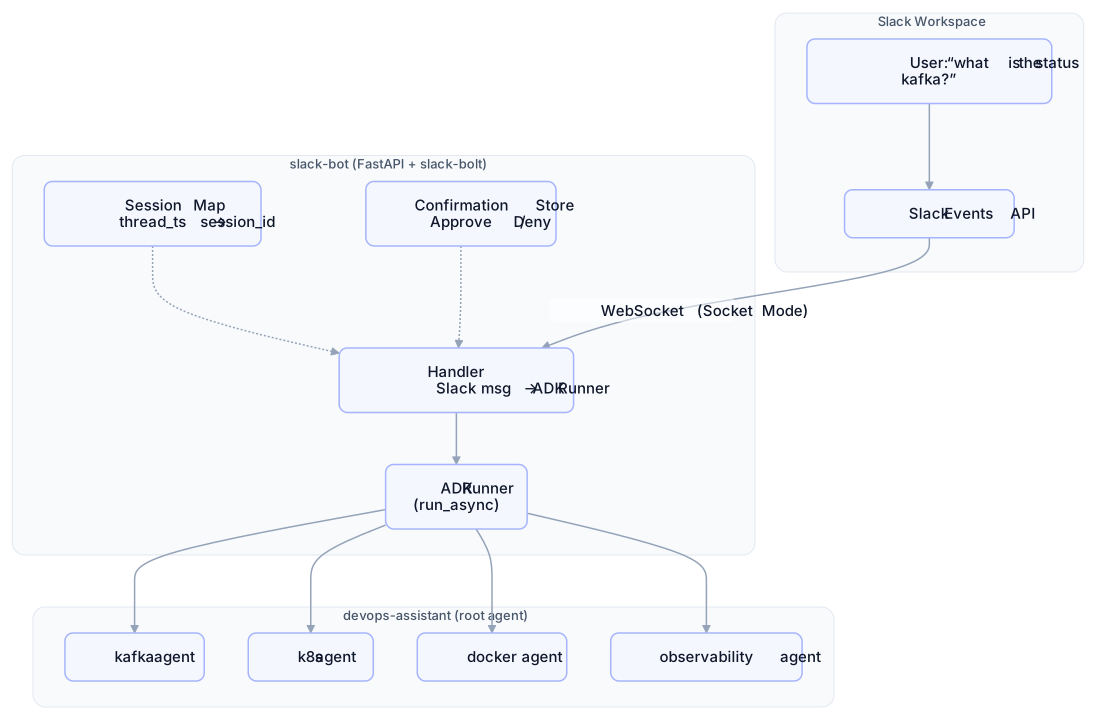
Three important design decisions here:
Decision 1: One Thread = One Session
Slack threads are a natural fit for conversation boundaries. Each thread maps to one ADK session:
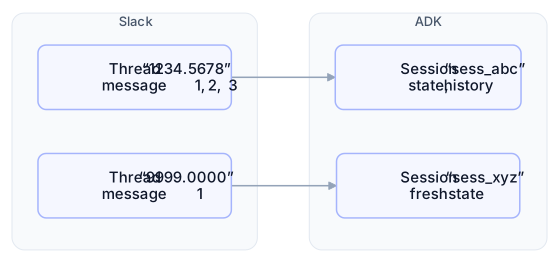
The SessionMap handles this mapping:
class SessionMap:
    def __init__(self):
        self._map: dict[tuple[str, str], str] = {}  # (channel, thread_ts) → session_id

    def get(self, channel: str, thread_ts: str) -> str | None:
        return self._map.get((channel, thread_ts))

    def set(self, channel: str, thread_ts: str, session_id: str) -> None:
        self._map[(channel, thread_ts)] = session_id
When a message arrives in a new thread, a new ADK session is created. Subsequent messages in the same thread continue the same session — the agent remembers the conversation context.
Decision 2: Confirmation via Buttons, Not Text
In Part 1, I showed how the require_confirmation() callback gates destructive tools. In the CLI, it works through text: the agent asks "are you sure?", the user types "yes".
In Slack, text-based confirmation is clunky. Instead, guarded tools post interactive Block Kit buttons:
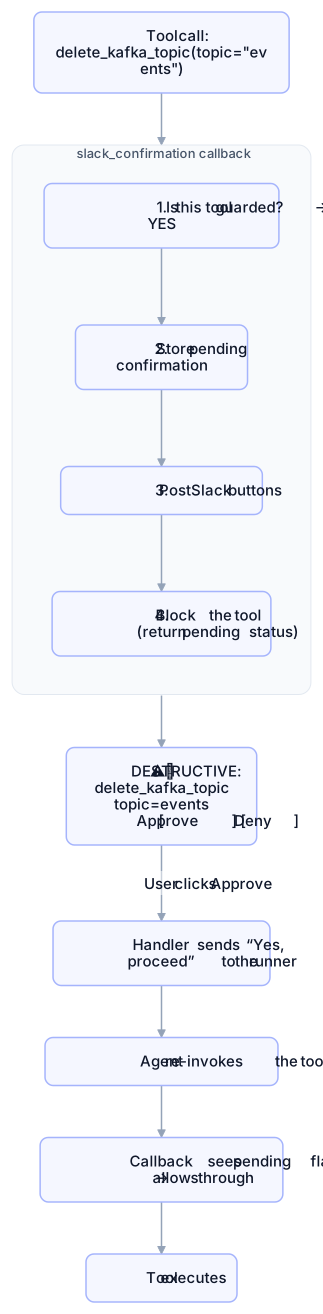
The key is that the Slack callback reuses the same guardrail metadata from the core library. It reads @destructive and @confirm decorators but replaces the text flow with buttons:
from ai_agents_core import get_guard_level, get_guard_reason, LEVEL_DESTRUCTIVE

def slack_confirmation(store, slack_client, channel_ref):
    def callback(*, tool, args, tool_context):
        func = getattr(tool, "func", None)
        level = get_guard_level(func)
        if level is None:
            return None  # safe tool, proceed

        # Already confirmed? Allow through
        pending_key = f"_guardrail_pending_{tool.name}"
        if tool_context.state.get(pending_key):
            tool_context.state[pending_key] = False
            return None  # proceed

        # Block and post buttons
        tool_context.state[pending_key] = True
        blocks = build_confirmation_blocks(tool.name, args, ...)
        slack_client.chat_postMessage(channel=..., blocks=blocks)
        return {"status": "confirmation_required", ...}

    return callback
The core library stays transport-agnostic. The Slack bot adds its own confirmation UI on top.
Decision 3: Socket Mode for Local Dev
Slack's Events API normally requires a public HTTPS endpoint. For local development, that means ngrok or a tunnel.
Instead, I used Socket Mode — Slack connects to your app via outbound WebSocket. No public URL, no tunnel, works behind any firewall:

Setup takes 5 minutes:
# Configure tokens in .env
make up                    # start Kafka, Prometheus, etc.
make run-slack MODE=socket # connect to Slack via WebSocket
The Message Handler
The core handler is straightforward — it bridges Slack events to the ADK Runner:
async def handle_message(self, *, text, channel, thread_ts, user_id, say):
    # 1. Map thread to session
    session_id = self.session_map.get(channel, thread_ts)
    if session_id is None:
        session = await self.session_service.create_session(
            app_name="slack_devops", user_id=user_id,
        )
        session_id = session.id
        self.session_map.set(channel, thread_ts, session_id)

    # 2. Send to ADK Runner
    message = types.Content(role="user", parts=[types.Part.from_text(text=text)])
    response_text = ""
    async for event in self.runner.run_async(
        user_id=user_id, session_id=session_id, new_message=message,
    ):
        if event.content and event.content.parts:
            for part in event.content.parts:
                if part.text:
                    response_text += part.text

    # 3. Post response in thread
    formatted = md_to_mrkdwn(response_text)
    for chunk in chunk_message(formatted):
        await say(text=chunk, thread_ts=thread_ts)
The md_to_mrkdwn function handles the translation from Markdown (what the LLM produces) to Slack's mrkdwn format (what Slack renders). The chunk_message function splits long responses so they don't hit Slack's message length limits.
Package Structure
The Slack bot follows the same workspace pattern as every other agent:
agents/slack-bot/
├── pyproject.toml             ← workspace package, depends on devops-assistant
├── slack_bot/
│   ├── app.py                 ← FastAPI + slack-bolt (webhook mode)
│   ├── socket_mode.py         ← Socket Mode entry point (local dev)
│   ├── handler.py             ← Slack event → ADK Runner → Slack response
│   ├── confirmation.py        ← Slack buttons for @destructive/@confirm tools
│   ├── session_map.py         ← thread_ts ↔ session_id mapping
│   ├── formatting.py          ← Markdown → Slack mrkdwn
│   └── config.py              ← SlackBotConfig(AgentConfig)
└── tests/                     ← 35 tests, all mocked
It depends on devops-assistant (for the root agent) and ai-agents-core (for guardrail introspection). Everything else is self-contained.
What I Learned
1. say() is async in slack-bolt
This one bit me. In slack-bolt's AsyncApp, the say() function is a coroutine. If you forget await, you get a silent failure — the message never posts, and you only see a RuntimeWarning in the logs. Always await say().
2. SQLite needs the async driver
ADK's DatabaseSessionService uses SQLAlchemy async. The default sqlite:/// URL loads the synchronous pysqlite driver, which throws an error. The fix: sqlite+aiosqlite:///.
3. Keep the core transport-agnostic
I was tempted to add Slack-specific logic to core/guardrails.py. Instead, I exposed get_guard_level() and get_guard_reason() as public APIs and built the Slack confirmation as a separate callback. Now any future transport (MS Teams, Discord, a mobile app) can do the same thing without touching the core.
Try It Yourself
The setup takes about 5 minutes:
Create a Slack app from the manifest (JSON is in the repo README)
Generate tokens (Bot Token + App-Level Token for Socket Mode)
Add them to
agents/slack-bot/.envRun:
make up && make run-slack MODE=socketInvite the bot to a channel and start chatting
What's Next
The Slack bot gives us identity for free — every message comes with a Slack user ID. In the next part, I'll build on this to add IAM and role-based access control: who can run read-only tools, who can approve destructive operations, and how to tie it all to your existing SSO.
The audit trail from Part 1 + Slack user identity + RBAC = knowing not just what happened, but who authorized it and why.
The full source code is on GitHub. Star it if you find it useful.